Overview
Gratis Tables turns CSV data into responsive front-end tables that visitors can search and sort. Each table is stored as its own content item and embedded with a shortcode, making it a lightweight alternative to TablePress for price lists, comparisons and specification tables.
Creating and managing tables
- Open Tables in the admin sidebar and click Add Table.
- In the Table Data (CSV) box, paste or type your data — the first row is treated as the header, then one row per line, comma-separated.
- Publish the table, then copy the ready-made embed code from the Shortcode box (it already contains the table’s ID).
Opening the settings screen
- Go to Tables → Settings (URL:
/wp-admin/edit.php?post_type=gratis_table&page=gratis-tables-settings). - Set the defaults, then click Save settings.
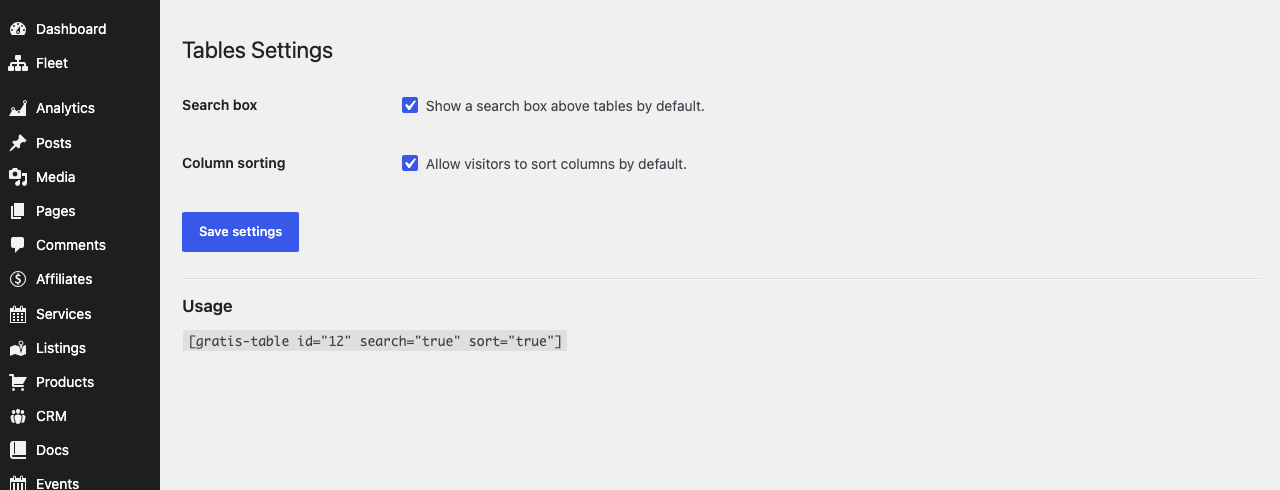
Default display options
These defaults apply to every table unless a shortcode overrides them:
- Search box — show a search field above tables so visitors can filter rows as they type (on by default).
- Column sorting — let visitors click a column header to sort the table by that column (on by default).
Shortcode
- Embed a table —
renders the table with that ID. Override the defaults per embed with thesearchandsortattributes, for example.
Recommended starting point
- Create one table, paste your CSV with a clear header row, and Publish.
- Leave Search box and Column sorting on for larger tables; turn either off per embed for short ones via the shortcode attributes.
- Paste the
shortcode from the table’s Shortcode box into a page or post.