Overview
Gratis Security hardens WordPress from a single screen: a web application firewall, XML-RPC blocking, security response headers, login rate limiting, file-integrity monitoring and TOTP two-factor authentication. It is a self-hosted alternative to Wordfence, with a request block log and a core-file change report built into the same page.
Opening the settings screen
- In the admin sidebar, hover Settings and click Gratis Security (URL:
/wp-admin/options-general.php?page=gratis-security). - Toggle the protections below, then click Save Changes.
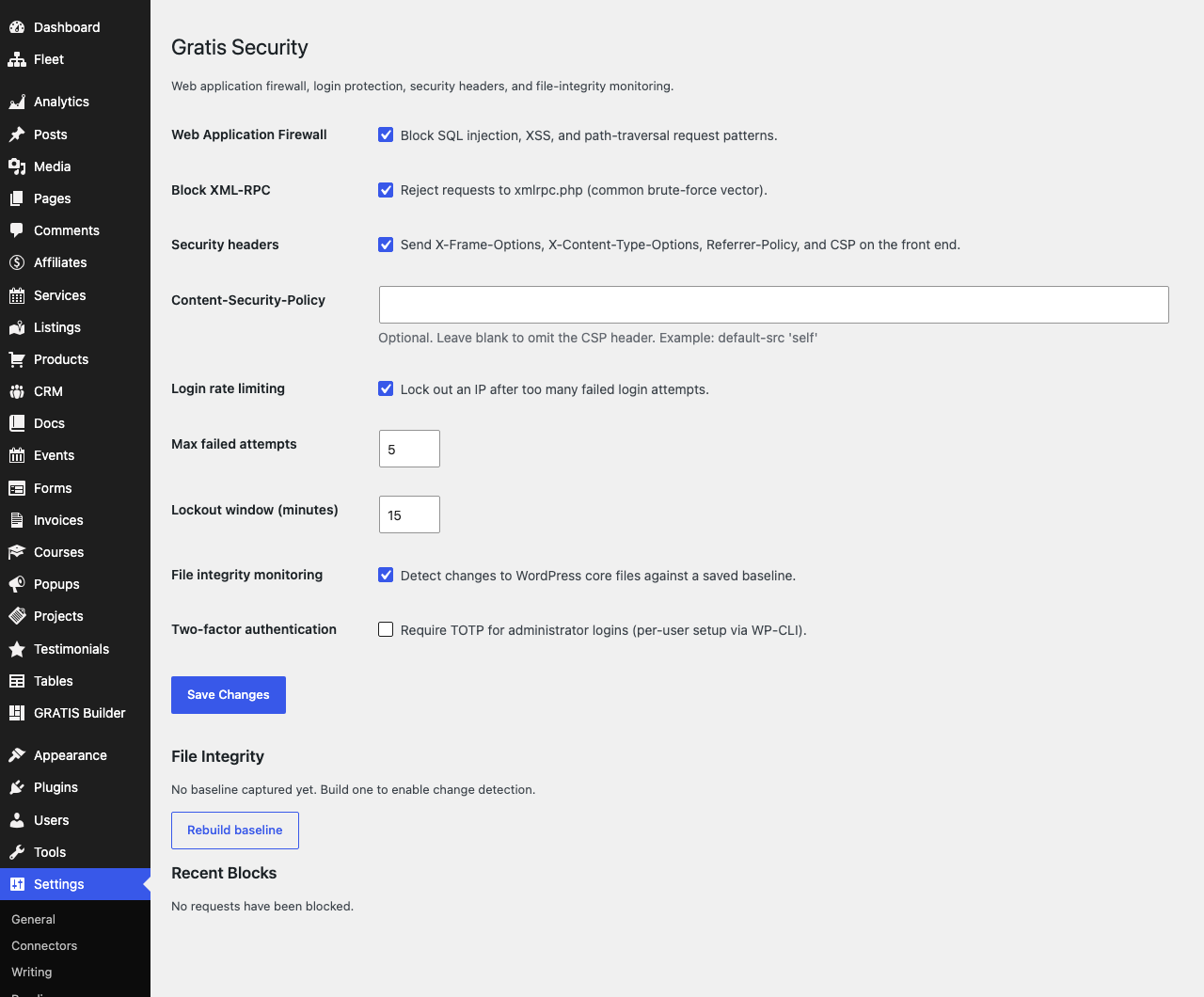
Web application firewall
- Web Application Firewall — inspects incoming requests and blocks common SQL injection, cross-site scripting (XSS) and path-traversal patterns. It runs as early as possible on each request.
- Block XML-RPC — rejects requests to
xmlrpc.php, a frequent brute-force and pingback-abuse vector. Leave it on unless you rely on XML-RPC (for example the legacy mobile app or some remote-publishing tools).
Blocked requests are listed under Recent Blocks further down the page (time, IP, reason and URI), with a Clear log button.
Security headers
- Security headers — sends hardening response headers on the front end, including
X-Frame-Options,X-Content-Type-Options,Referrer-Policy,X-XSS-ProtectionandPermissions-Policy(plusStrict-Transport-Securitywhen the site is served over HTTPS). - Content-Security-Policy — an optional CSP header value. Leave it blank to omit the header; set a policy such as
default-src 'self'once you know which external sources your site needs. An over-strict policy can block legitimate scripts, styles or images, so test before relying on it.
Login rate limiting
- Login rate limiting — locks out an IP address after too many failed login attempts, blunting password brute-force attacks. A successful login resets the counter.
- Max failed attempts — how many failures are allowed before lockout (default 5).
- Lockout window (minutes) — how long a locked-out IP must wait before it can try again (default 15).
File integrity monitoring
- File integrity monitoring — detects changes to WordPress core files by comparing them against a saved baseline of hashes for the
wp-adminandwp-includesdirectories.
Use the File Integrity panel to Rebuild baseline after a deliberate core update; the report then lists any files reported as Modified or Missing relative to that baseline.
Two-factor authentication
- Two-factor authentication — enables TOTP (authenticator-app) two-factor for administrator accounts. Per-user secrets are provisioned with the plugin’s WP-CLI command (
wp gratis-security) rather than from this screen.
Recommended starting point
- Keep Web Application Firewall, Block XML-RPC, Security headers, Login rate limiting and File integrity monitoring enabled — these are safe defaults for most sites.
- Click Rebuild baseline once after activation, and again after each WordPress core update, so the integrity report stays accurate.
- Add a Content-Security-Policy only after testing, and enable Two-factor authentication for admins once per-user secrets are provisioned via WP-CLI.