Overview
Gratis DevTools bundles the developer utilities managed hosts usually charge for: an admin-bar debug bar, a read-only environment-info page, database migration management, staging-environment helpers, and WP-CLI commands. The tools live under the Tools menu because they are developer aids rather than site-wide options.
Opening the settings screen
- In the WordPress admin sidebar, hover Tools.
- Click DevTools (URL:
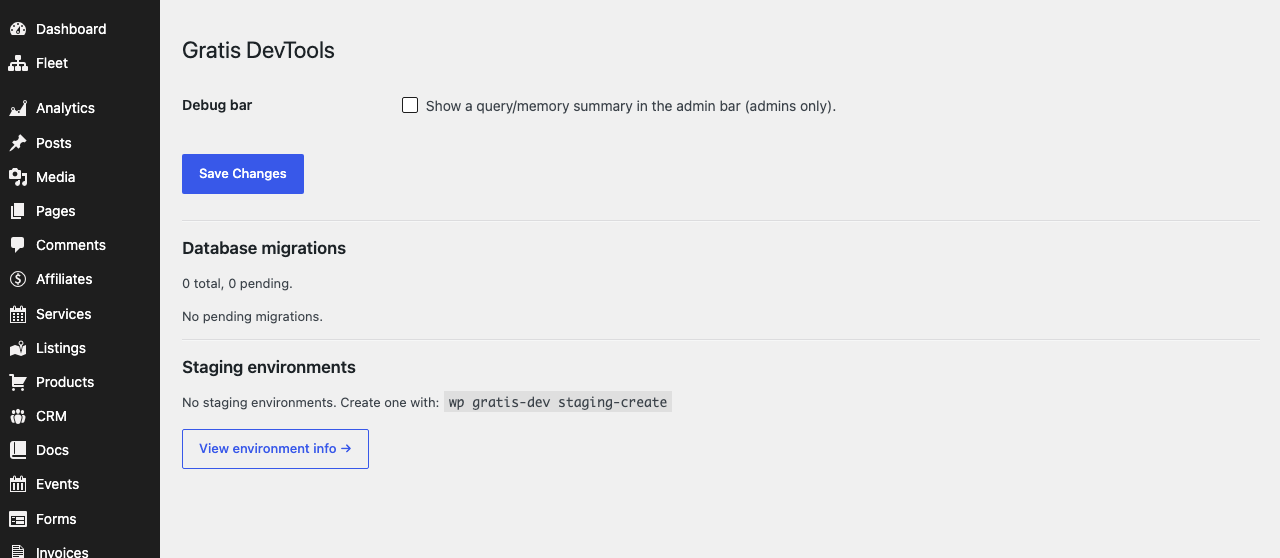
/wp-admin/tools.php?page=gratis-devtools). - Toggle the debug bar and review migrations / staging below, then click Save Changes for the settings form.
Debug bar
- Debug bar — when enabled, adds a query and memory summary to the WordPress admin bar so you can spot heavy pages at a glance. It is visible only to administrators and is off by default.
Database migrations
This section shows the total number of registered migrations and how many are pending. When migrations are pending, each one is listed and a Run pending migrations button executes them; a notice then reports how many ran. When nothing is pending it simply confirms the database is up to date.
Staging environments
Any staging environments you have created are listed here with their name, table prefix, table count, and creation date. Staging environments are created from the command line with wp gratis-dev staging-create; the page links you to that command when none exist yet.
Environment information
A second page, Tools → DevTools Env (URL: /wp-admin/tools.php?page=gratis-devtools-env), shows read-only system facts useful for debugging and support, grouped into:
- WordPress — version, site/home URLs, multisite flag, language, active theme, active plugin count, debug mode, debug log, and environment type.
- PHP — version, SAPI, memory limit, max execution time, upload/post size limits, and OPcache, cURL, Imagick, and GD availability.
- Server — server software, OS, time zone, and HTTPS status.
- Database — server version, table prefix, charset, and collation.
Tips
- Enable the Debug bar on a staging or local site to monitor query counts while you work.
- Check Database migrations after updating, and run any that are pending.
- Open DevTools Env when filing a bug report — it gathers the same facts a support team would ask for.
- Use the
wp gratis-devCLI commands (includingstaging-create) for scripted workflows.