Overview
Gratis Backup creates stream-first backups of your WordPress database and files. It writes backups in chunks and never loads a whole archive into memory, so it works on modest hosting. You can schedule recurring backups, run one on demand, keep a configurable number of recent copies, and download a backup’s database export with one click. It also takes an automatic snapshot before plugin and theme updates.
Opening the settings screen
- In the WordPress admin sidebar, open Tools.
- Click Gratis Backup (URL:
/wp-admin/tools.php?page=gratis-backup). - Adjust the schedule below, then click Save Changes.
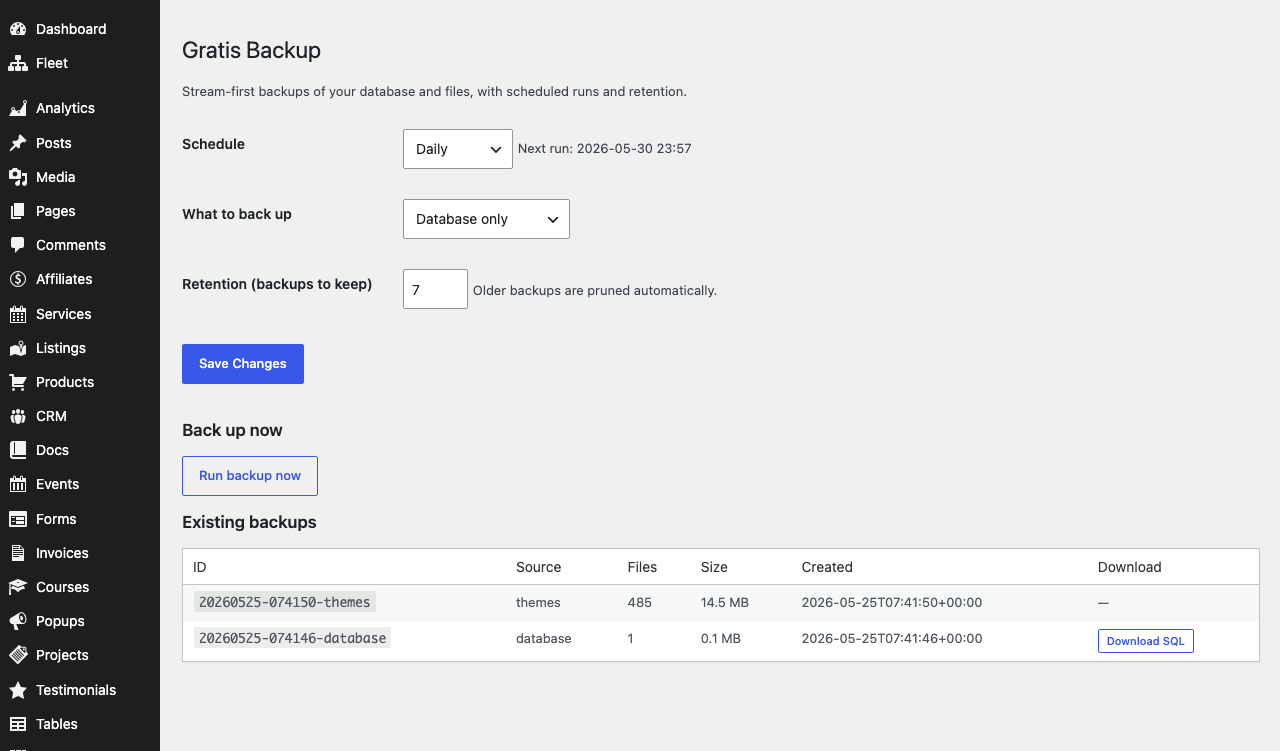
Schedule settings
- Schedule — how often automatic backups run:
Hourly,Twice daily,Daily(the default), orWeekly. The screen shows the next scheduled run time, and changing the frequency reschedules the job immediately. - What to back up — the scope of each backup:
Database only(the default),Uploads only, orDatabase + uploadsfor a full content backup. - Retention (backups to keep) — how many recent backups to retain; older ones are pruned automatically. Accepts
1to365, defaulting to7.
Running a backup now
The Back up now button runs an immediate backup using the currently selected What to back up scope, independent of the schedule. A success or failure notice is shown when it finishes. If the backup directory cannot be written, the run fails and a warning explains why (see below).
Existing backups and downloads
The Existing backups table lists each saved backup with its ID, source, file count, size, and creation time. For database backups a Download SQL button streams the database.sql export straight to your browser. Backups are stored under wp-content/gratis-backups/, and the download is path-checked so only files inside that folder can be served.
Requirements and automatic snapshots
The backup directory (wp-content/gratis-backups) must be writable; if it is not, the screen shows a warning and backups will not run until permissions are fixed. Separately, Gratis Backup captures a pre-update snapshot before WordPress applies plugin or theme updates, giving you a recovery point if an update goes wrong.
Recommended starting point
- Confirm there is no “not writable” warning before relying on backups.
- Leave Schedule at
Dailyand chooseDatabase + uploadsif you have room to store files. - Set Retention to a number you can afford to keep (for example
7–14). - Click Run backup now once, then use Download SQL to verify you can retrieve a copy.