Overview
Gratis Media adds folders to the WordPress media library and a responsive gallery shortcode. Folders are a hierarchical taxonomy on attachments, so you can group uploads and filter the library by folder. New uploads can be sorted automatically by file type, and existing files can be organised in one pass.
Organising media into folders
The plugin registers a Folders taxonomy on attachments. In Media → Library a folder dropdown appears so you can filter to a single folder, and each file’s folder is shown as a column. When auto-organising, files are filed by type into Images, Videos, Audio, Documents or Other folders based on their MIME type.
Opening the settings screen
- In the WordPress admin sidebar, open Media.
- Click Folders & Gallery (URL:
/wp-admin/upload.php?page=gratis-media-settings).
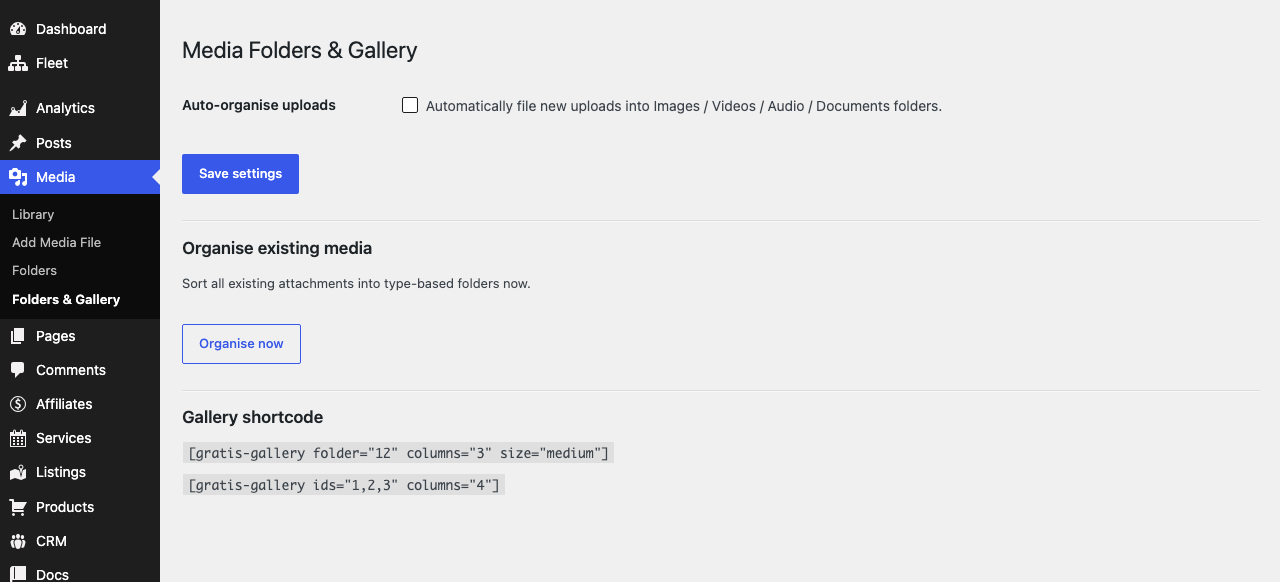
Folder options
- Auto-organise uploads — when enabled, every new upload is automatically filed into the matching type-based folder (Images / Videos / Audio / Documents) the moment it is added. Leave it off to file media manually.
Organise existing media
The Organise now button performs a one-time sweep of every existing attachment, sorting each into its type-based folder. After it runs, the screen reports how many files were organised. Use it once after activating the plugin to tidy a library that predates it.
Gallery shortcode
- Image grid —




folder(a folder ID to scope the gallery),ids(a comma-separated list of specific attachment IDs),columns(1–6, default 3),size(image size, defaultmedium) andlimit(maximum images, default 24). Examples:and.




Recommended starting point
- Click Organise now once to sort your current uploads into folders.
- Enable Auto-organise uploads so future files are filed automatically.
- Display a folder on the front end with