Overview
Gratis Events turns WordPress into an event manager. It adds an Events post type with start/end dates, a venue, attendee capacity and RSVP tracking, optional recurrence, and category terms. Visitors can RSVP through a built-in endpoint, add an event to their own calendar with a one-click iCal download, and browse upcoming events through a shortcode or the automatic /events/ archive.
Managing events
Events are a custom post type. In the WordPress admin sidebar open Events and click Add New. Give the event a title and description as usual, then fill in the Event Details box:
- Start date / End date — the date and time the event runs, chosen with a date-and-time picker. The start date is what listings sort and filter by.
- Venue — a free-text location shown next to the event in listings and written into the iCal export.
- Capacity — the maximum number of RSVPs accepted. Enter
0for unlimited; once a capped event is full, further RSVPs are rejected. - RSVPs — a read-only count of attendees recorded so far.
- Recurrence — how often the event repeats:
Does not repeat,Daily,WeeklyorMonthly.
You can also group events with the Event Categories taxonomy and reference a category by slug in the shortcode.
Opening the settings screen
- In the WordPress admin sidebar, open Events.
- Click Settings (URL:
/wp-admin/edit.php?post_type=gratis_event&page=gratis-events-settings). - Adjust the options below, then click Save settings.
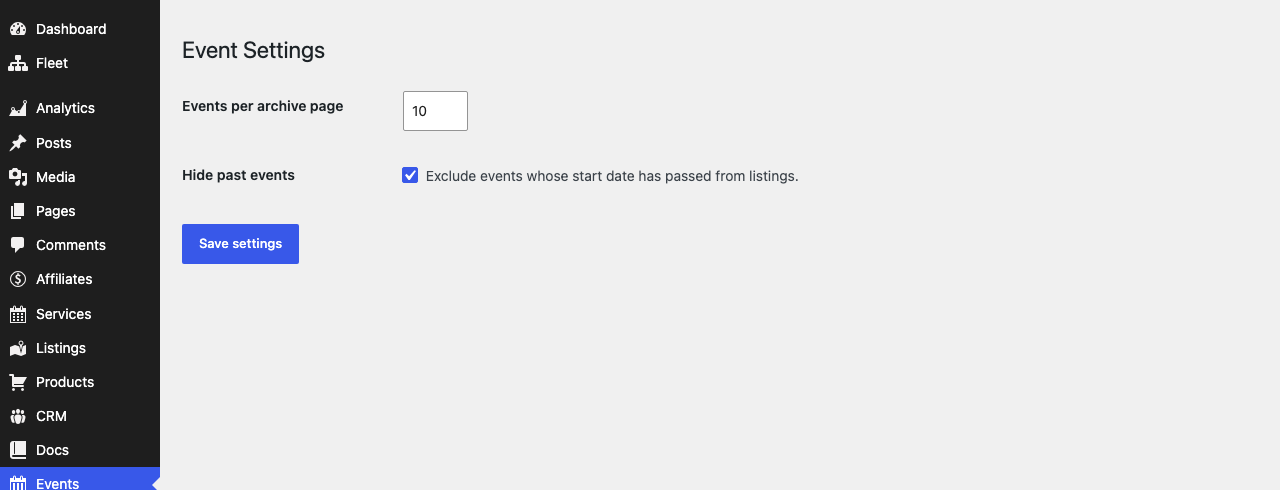
Event listing options
- Events per archive page — how many events appear on each page of the
/events/archive before pagination kicks in. Accepts 1–100; defaults to 10. - Hide past events — when enabled, events whose start date has already passed are excluded from listings, so the archive only shows what is still upcoming.
Shortcodes
- Event list — embeds a list of events anywhere with
No upcoming events.
limit(number of events, default 10),category(an Event Category slug), andpast(yesto show finished events instead of upcoming ones). Example:No upcoming events.
No upcoming events.
Adding events to a calendar (iCal)
Every event can be downloaded as a standard .ics calendar file by appending ?gratis_ical=<event ID> to your site URL — for example https://example.com/?gratis_ical=42. Link to that URL from an event template to give visitors an “Add to calendar” button that works with Google Calendar, Apple Calendar and Outlook.
Recommended starting point
- Create your first event under Events → Add New and set its start date, venue and capacity.
- Leave Hide past events enabled so visitors only see upcoming dates.
- Place
No upcoming events.
- Set a Capacity on events that need a guest limit so RSVPs close automatically when full.