Overview
Gratis Booking adds appointment scheduling to WordPress. You define bookable services, the plugin works out open time slots from your business hours and existing appointments, and visitors reserve a slot through a front-end widget. Each booking is saved as an appointment and confirmed by email to both the customer and the site.
Managing services and appointments
The plugin registers two custom post types under the Services menu:
- Services (
gratis_service) — the things customers can book. Each service supports a title, description, and featured image, plus a duration in minutes (_duration) and a price (_price) set via its meta box. - Appointments (
gratis_appointment) — the bookings themselves, listed as a submenu under Services. Each record stores the customer name, email, date, time, and a confirmed status.
Create one Service per offering and set its duration before publishing; that duration determines how slots are spaced for that service.
Opening the settings screen
- In the WordPress admin sidebar, open Services.
- Click Settings (URL:
/wp-admin/edit.php?post_type=gratis_service&page=gratis-booking-settings). - Adjust the fields below, then click Save settings.
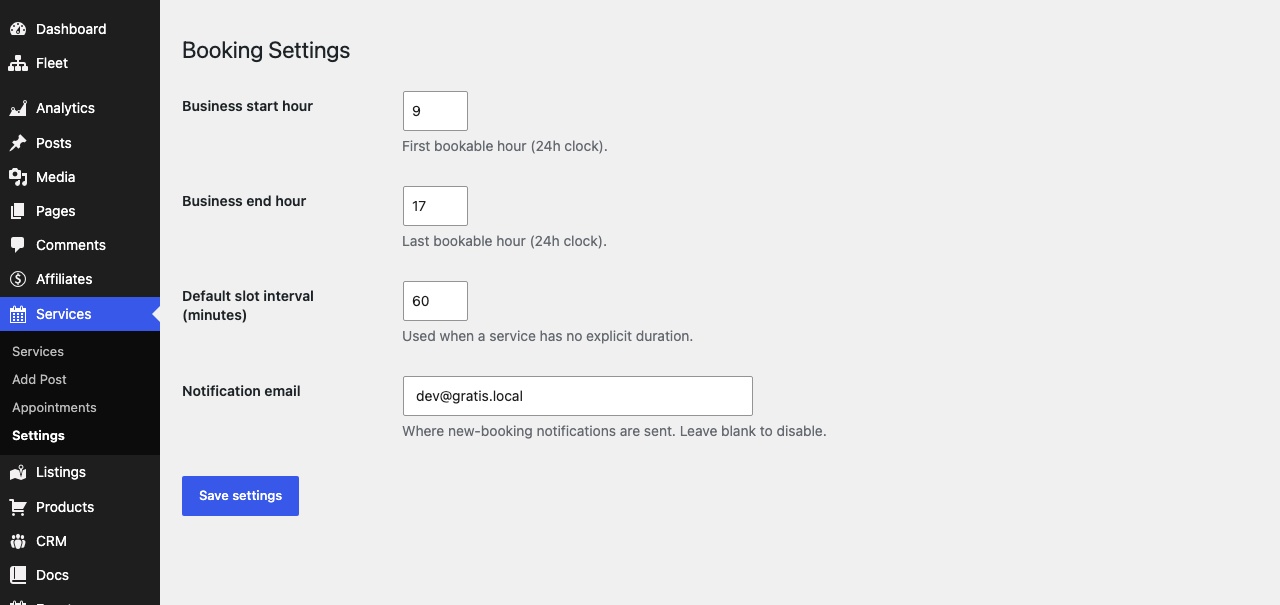
Booking settings
- Business start hour — the first bookable hour on a 24-hour clock. Default
9(9 AM). Slots are not offered before this hour. - Business end hour — the last bookable hour on a 24-hour clock. Default
17(5 PM). If it is set at or below the start hour, the plugin nudges it to one hour later. - Default slot interval (minutes) — the spacing between slots when a service has no explicit duration. Default
60; accepts5–480minutes. - Notification email — where new-booking alerts are sent. Defaults to the site admin email; leave it blank to disable admin notifications (customers are still emailed their confirmation).
Shortcodes
Place the booking widget on any page or post with the booking shortcode. Pass the service attribute with a service’s ID to pre-select it:
- Booking widget — renders the front-end calendar/booking form. Example:
. The aliasworks identically.
How slots and bookings work
The widget reads available slots from the REST route /wp-json/gratis-booking/v1/slots/<service_id>, which builds open times from your business hours and the service duration while skipping times that are already booked. Submitting the form posts to /wp-json/gratis-booking/v1/book, which requires a valid email, creates a confirmed appointment, and sends confirmation emails.
Recommended starting point
- Create your Services and set each one’s duration and price.
- Set Business start/end hour to your real opening times and confirm a Notification email.
- Add
to a “Book now” page. - Place a test booking and check both the customer and admin confirmation emails arrive.