Overview
Gratis Social adds social share buttons for Facebook, X, LinkedIn, Pinterest and Email. It uses each network’s public share URL only — no tracking pixels and no third-party JavaScript SDK — and can append buttons to your content automatically, float them in a sidebar, or place them manually with a shortcode.
Opening the settings screen
- In the admin sidebar, hover Settings and click Gratis Social (URL:
/wp-admin/options-general.php?page=gratis-social-settings). - Choose your options, then click Save Changes.
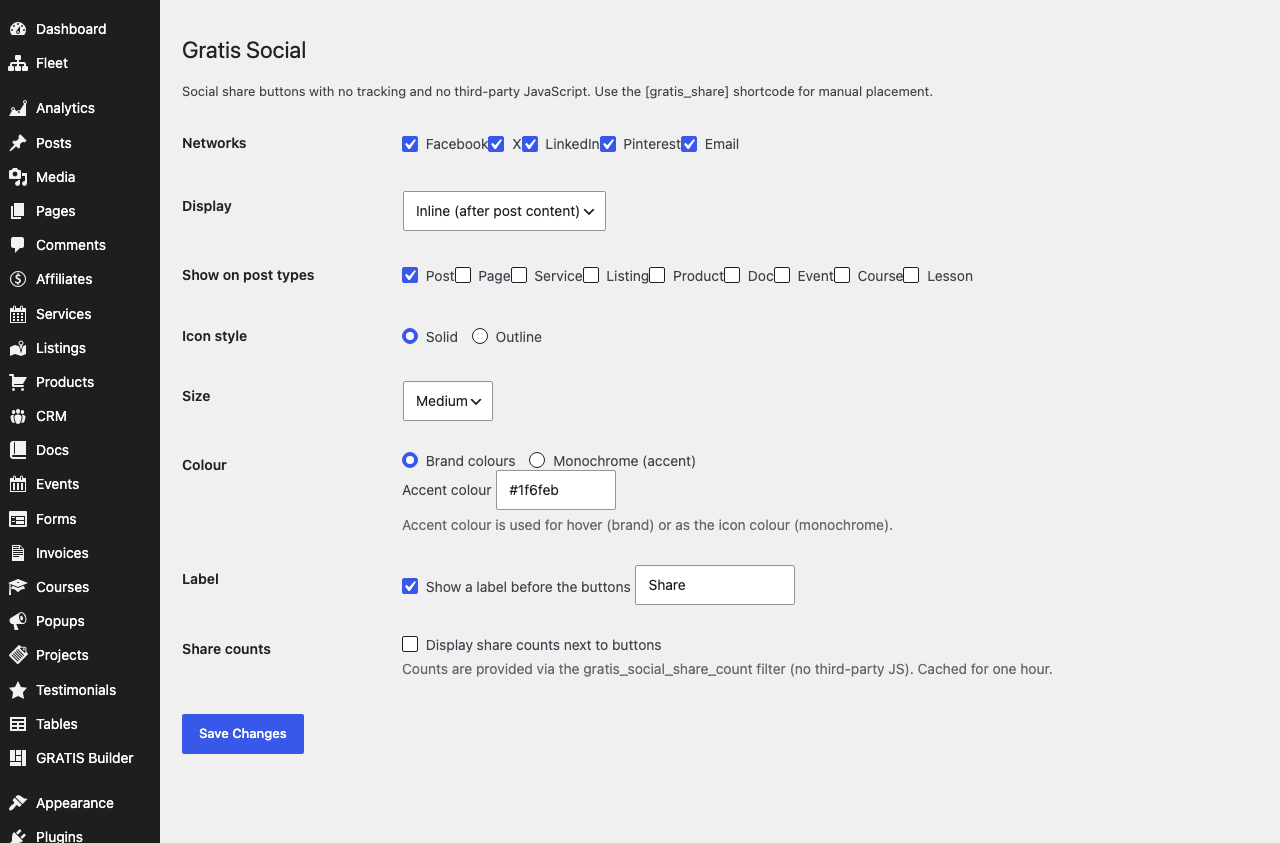
Networks and placement
- Networks — tick which share buttons appear:
Facebook,X,LinkedIn,PinterestandEmail. They display in that order. - Display — how buttons are shown:
Inline (after post content),Floating sidebar,Inline + floating sidebar, orShortcode only(no automatic output). - Show on post types — which public post types get buttons added automatically (default Posts).
Appearance
- Icon style —
Solidfilled icons orOutlineicons. - Size — button size:
Small,MediumorLarge. - Colour —
Brand colours(each network’s own colour) orMonochrome (accent)(one colour for every button). - Accent colour — the hex colour used for hover in brand mode, or as the icon colour in monochrome mode (default
#1f6feb). - Label — optionally show a short label before the buttons, and set its text (default
Share).
Share counts
- Share counts — display a count next to each button. Counts are supplied through the
gratis_social_share_countfilter (no third-party JavaScript) and cached for one hour, so leave this off unless you provide a count source.
Shortcode
- Manual placement —
outputs the buttons anywhere. Optional attributes:urlandtitle(default to the current post),networks(comma list, e.g.facebook,x),label, andcounts="1"to force counts on. Example:.
Recommended starting point
- Pick 3–4 Networks your audience actually uses and set Display to
Inline. - Choose Brand colours at Medium size for a familiar, balanced look.
- Leave Share counts off unless you have wired up a count source through the filter.